Monday, February 16, 2015

Untethered Teaching (and Netgear Push2TV review)

I was recently inspired by an article discussing the untethering of the teacher to relate my experiences in a classroom.
We’ve all been in one. You know them. Long rows of tables and chairs facing the well-used whiteboard that also serves as a projection screen.

As teachers we tend to be tethered to the front of our rooms. Even if we attempt to actively avoid the ‘sage on the stage’ mantle, invariably those explicit teaching moments require us to roll up our sleeves, grab a whiteboard marker, and go to it.

Perhaps it was due to my incompetence when it comes to writing on a whiteboard, or my own nerdy pre-disposition, but I started tinkering with ways to untether myself many years ago. However, it wasn’t until the Collaborative Teaching project at St Mary’s Maitland that I was able to bring it all together.

The Collaborative Teaching project at St Mary’s Maitland saw the old hospitality room – all 115m2 – stripped back to a bare classroom. It still had at the front of the room a whiteboard and projector – albeit a little larger than the norm – and the teacher’s desk. And to that we added 48 students to a flipped learning pedagogy with high amounts of collaboration.

We also started to use of the projector manufacturer software on a tablet device to control the projector. Now the explicit teaching could occur from any part of the room. PowerPoints could be delivered from anywhere by anyone.  It was possible to look over a student’s shoulder, see some good work and send it to the screen via the camera. It was also possible to write in OneNote all those mindmaps and visual tools that are so prevalent in the HSC, or to demonstrate in real time the ideas students were putting on paper. It was even possible to throw the tablet to a student to present, control or use for small group purposes.  I was able to change the way I taught as well. Everything could be recorded. This was really the first step in the flipped learning approach I employed for my teaching of Studies of Religion at St Mary’s.  

As we became untethered I started to notice a change. I didn’t have to stop a lesson and address the student talking at the back. I could now continue teaching and simply draw near. Many of those oft-disruptive moments disappeared. In addition, the Alt-Tab game became less and less as students realised I could see their screens and if they were off-task. I referred to it as proximal behaviour management. Remind me to trademark that.

Almost any classroom teacher can untether themselves, though some will find it easier than others. Teachers with newer tablets and laptops which have WiDi can use a range of WiDi connectors to transmit information wirelessly to the projector. Some newer projectors and televisions are already WiDi compliant. I’ve used a few  products to connect via WiDi, and it’s a seamless connection once you’ve ironed out a few bugs.

Untethering yourself is not always a simple process. However, to be free to teach from any part of the room is often worth some of the initial hassle.

In the video below I review the Netgear Push2TV device that provides a $60 option for connecting yourself wirelessly to a projector or television. 


Secondary Learning Technology Blog - Netgear Push2TV from Andrew Cornwall on Vimeo.

Thursday, February 12, 2015

Video Conferencing (Office Mix Hands On)

Well, it was very stop/start, but I managed to use Office Mix to create a video. You'll note that the audio on the 'how to's is fairly poor. It is the laptop's default microphone and it just really isn't up to task - the clarity is ok, but it doesn't have the noise cancelling features of a proper microphone.

The rest of the presentation is using an external Logitech (C920) webcam microphone. As you can tell the quality is far superior.

Meanwhile, if you are wanting to know the ins and outs of Video Conferencing, please see the documentation attached. I'll likely replace this with something more formal over the coming weeks.


Slot 1 2015 - Video Conferencing - 05-02-15 from Andrew Cornwall on Vimeo.

Tuesday, February 10, 2015

Office Mix

It's rare that I get excited about Microsoft products. Generally I am more into new hardware than productivity tools. However, with the release of Sway and Office 365 there are some real potential for Microsoft to change the way we do things as teachers.

One product, however, has gone somewhat under the radar. This is probably as its not an app or tool or even an upgrade, but an add-on for PowerPoint called Office Mix.
(Edit: Hopefully we'll see some more of this with Office 2016)

We've all sat through death by PowerPoint and even the most innovative educators use PowerPoint or something similar. However PowerPoint is a tool designed for synchronous learning - where the learner and teacher are co-located in time and space. This has worked well in classrooms up to now, but things are changing. The flipped classroom movement, MOOCs, Khan Academy and other attempts to leverage technology to delivery education typically demand that learning become asynchronous. To do this, you need technology that means learning anywhere, anytime.

As a flipped advocate and a flipper myself, I am excited about a tool like Office Mix. It allows me to do, in a very simple way, what I used to have to do with Camstasia. It is no where near as powerful, but nor is it as difficult to learn.

Microsoft's innovative educator program has brought together an ebook about this and other topics. I'll let you read it for yourself. Hopefully I'll have a hands-on review of Office Mix soon!


Monday, February 9, 2015

Kahoot

There are lots of fun tools and apps out there. One of the ones that I really enjoy using and watching being used is Kahoot.

Kahoot is game based quizzes and assessments. It is fun and colourful, and appeals to students of any ages (and teachers too).

Game-based learning can get a bit of flack - thanks Dan Pink - but I argue that it does have a place in our classrooms. This is particularly the case in those difficult-to-engage moments. Think last period Year 9!

Kahoot is easy to set up and get going as Susan Johnson demonstrates.


For me though, the real joy is on those moments when that student is fully engaged.


Good luck with your Kahooting!

Sunday, February 8, 2015

Video Conferencing

The Diocese of Maitland-Newcastle covers most of the Hunter Valley, Manning Valley and stretches to almost the Central Coast. From the head office it is more than two hours to some of the outlying schools. Attending professional development days, networking opportunities or even social events are sometimes impossible for teachers in outlying schools. This is one of the main motivators for teachers to use and make use of the video conferencing systems that are available.

But why bother?

I've used video conferencing for a variety of purposes over the last few years including:

  • virtually attending a conference
  • attending and participating in diocesan RSC meetings
  • mentoring newer teachers
  • deliver professional development on learning technology
  • demonstrate 'how to's on it matters
  • have meetings with staff in different sites
  • sharing ideas and and resources


Broadly speaking in the diocese there are two main systems that are active, accessible and known to work.


1) Google+ Video Hangouts (For 1-4 participants)


Google+ Video Hangouts is a part of the Google+ social network. If you make a Google+ account with your @mn.catholic.edu.au email you will find yourself a member of the mn.catholic.edu.au domain. You can then add other users to your 'circle's and before long you'll find yourself with a Facebook-esque experience all focused on education.

Video Hangouts works a little like Skype or similar programs. You contact someone in your 'circle' or via an email and they get an invite to your conversation. If they are online, they can accept your invitation. If they are not online or logged in they can log in and then accept the invitation.

From there you can record (straight to YouTube), share desktops and remote desktop and even add in some silly effects.

Requirements: Google Chrome, Google+ account (using your mn.catholic.edu.au account), webcam and camera.

Pros: Simply to use, very quick to set up and uses software and hardware found on most laptops.

Cons: Not effective for more than 4 participants if you want interaction (find for more than 4 if you just have on person speaking); video quality and audio can be less than adequate.

2) Cisco Video Conferencing (For 1-many participants)


Cisco Video Conferencing is available at all secondary schools. Generally this is a full hardware conferencing system and often located in a meeting room. Some schools also have portable systems. Lastly it is possible to download a software program that works with this system - email me for more information on this option.

The Cisco Video Conferencing system works by having virtual meeting rooms where different locations dial in to. The meeting room does not have a fixed location, though generally the room in your school has an allocated number (e.g. 06802).

With the system you can demonstrate your desktop, share presentations and generally do everything that Google+ Video Hangouts does.

Requirements: Either a Cisco video conferencing system, a portable video conferencing unit or the Cisco Jabber software and a laptop with a camera and microphone.

Pros: Superior video and audio, works well with larger numbers, already in place in most schools.

Cons: Generally have to book/share the room.

3) Other self-sourced options

There are plenty of other tools that allow conferencing and meeting spaces. I have used Big Blue Button before through the Canvas Learning Management System and it worked perfectly. Skype is another option that users may be familiar with. The only drawback here is that there isn't an already-established process of how to use these products, so you will have to go it alone!


Wednesday, February 4, 2015

Working with a stylus

Ok, I'll be honest. My handwriting is of the type most often seen in the medical fields. As an English/HSIE teacher by trade, its honestly embarrassing. However, computers have managed to keep my secret shame for a good few years. However it's becoming increasingly hard to hide....

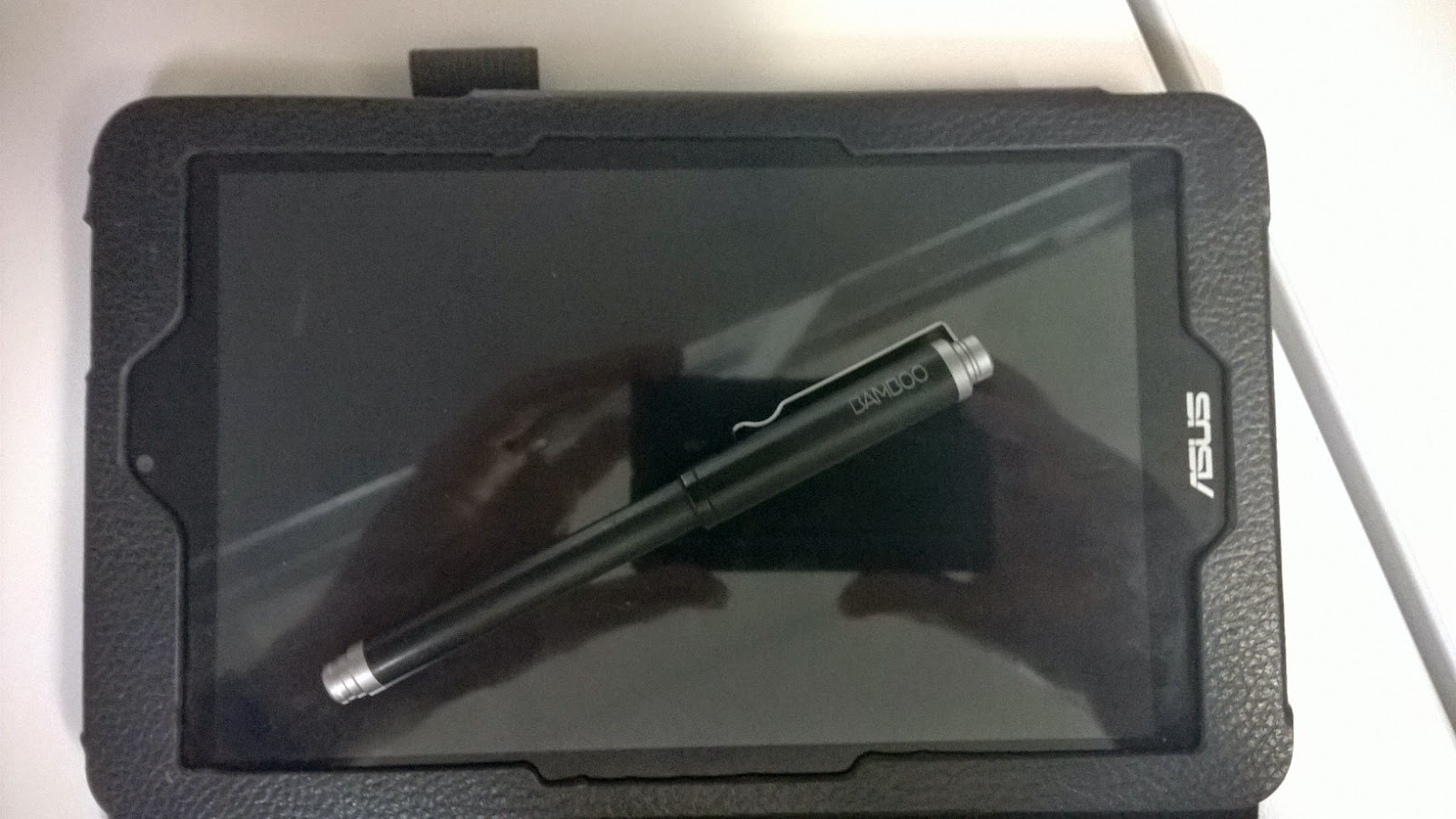
Late last year I took the plunge and purchased an Asus VivoTab Note 8. This is a handy piece of kit in and of itself and can be found edging closer to $300AUD.

Asus VivoTab Note 8 + Bamboo Feel + cheap ebay case
My reason for choosing the Asus VivoTab Note 8 over other cheaper options was because it made use of a Wacom digitizer. Having used this on my Samsung ATIV I was loathe to go back to and old and clunky stylus. More importantly, I was already a proud owner of a Bamboo Feel Stylus, easily one of the best upgrades I've ever made. With these products I am able to write effectively on the screen and it actually feels close to normal.

So what?

Well, here are some of the things I could do:

  • Student submits a typed essay, I could still annotate by hand on-screen. This provided a more personal interactions, all the ease of handwriting but with the security and convenience of digital documents.
  • PowerPoint's could be delivered wirelessly to the projector and annoted. Mindmaps now became embedded in the PowerPoint. 
  • I could jot to do lists, quick emails, etc on the tablet without using the clunky on-screen keyboard. 
  • I could draw, sketch, plan and design on OneNote, Word, in email or graphics programs.
  • In meetings I only required my tablet and a pen. I could write my minutes into the agenda in my short-form and draw all over documents.

It was surprising how handy it became! 

If you want to know more about using a stylus with Office products, Microsoft has put together a handy guide.


Monday, February 2, 2015

Windows 8 Apps


Look, I'll be honest. Occasionally I get frustrated that I cannot get an app for Windows. For example my bank, like many, offers an app for both Android and Google but not for Windows Phone.

As a Windows Phone user for the last four years this is very frustrating. Many of my colleagues and friends are at a loss as to why I persist with the Windows Phone platform or, indeed, Windows at all. You see, normally an average 30 something with a suit and no tie the perfect accessory would be a expected to carry a MacBook and/or iPad. (If I could grow a beard it would be a Chromebook)

I however carry around my Dell e7240, an Asus VivoTab 8 and a Nokia Lumia 930.

The reality is, however, that there are a multitude of good apps for Windows and that app writers are now catching on to the fact that the Windows platform for apps is becoming more appealing. Skoolbag, used extensively by schools to communicate with parents, is hoping to roll out a Windows Phone app this year. Meanwhile Windows 10 and a single-platform for apps might just add further incentive to build apps for Windows.

But I digress.

What does this all mean for educators? Well there are actually a range of really useful Window's apps and tools out there. Over the coming week's I'd like to highlight a few.
Teacher Collection - Windows 8 Apps for Educators
This week, I'd like to take a look at The Teacher Collection which builds apps for educators. I've used these before on my Windows Tablet to great success. Here is a sample:

  • 21st Century Learning Design - If you've attended our 21CLD workshops here at school, you might consider this handy self-assessment tool. It help's assess your tasks against the 21CLD framework. 
  • Academic Wordsmith - not as user friendly as one might like, but a whole lot easier than other products on the market. This tool helps to analyse content with a view to identifying plagiarism.
  • Markbook - this is a powerful digital mark-book and certainly worth looking at if you'd like to swap paper for a digital mark-book. This has integration with OneDrive which can make it a very powerful assessment support tool.
  • Class Seater - seems simple enough, but if you've ever had 9D English you'll know how important seating arrangements are. I used a lot of group work and this app helped to have different setups for different activities. 
  • Essay Marker - I haven't used this tool, having used something similar last year with HSC Studies of Religion. However, this looks like an excellent tool for those who mark essays on a regular basis.